
Completion requirements
In this section, we will learn how to mark a Pre and Post Test for an individual student or cohort within the SPAmarkbook.
Step 1: You first need to Choose the Student or Cohort you would like to mark
IMPORTANT NOTE: If you do not know how to select a student or cohort from the student/cohort selection menu, please refer to the instructions linked below:
Step 2: Once you have selected the Student or Cohort, you are now ready to mark your Pre/Post test
Step 3: Navigate to the Pre/Post Test option in the main menu

- Select SPAmarkbook from the main menu
- Then click Marking
- Then select Pre/Post Test
Step 4: Find the Pre/Post test you would like to mark

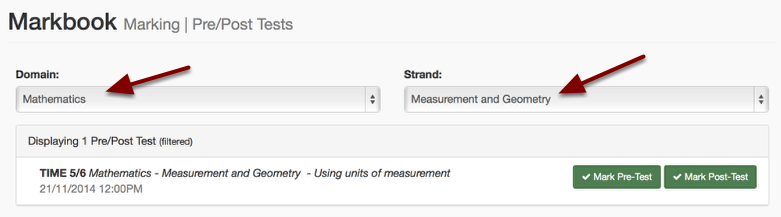
You will be presented with a list of all your published Pre and Post tests. You can scroll through this list to find your test, or you can filter down the tests by selecting the Domain and Strand and/or Level. This will present you with a list of only the tests in the Domain, Strand and Level.
Here, I have filtered down to show only Pre and Post Tests in the Domain of Math and the Strand of Measurement and Geometry:
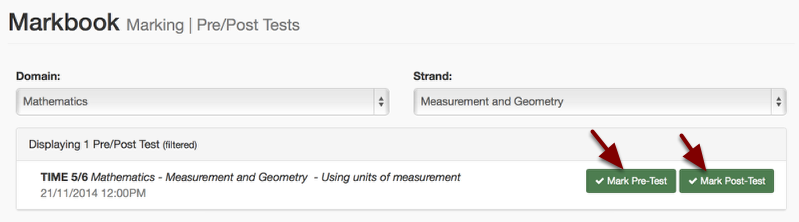
Step 5: Select to date to mark.
Marking an Individual Student's Pre/Post Test:
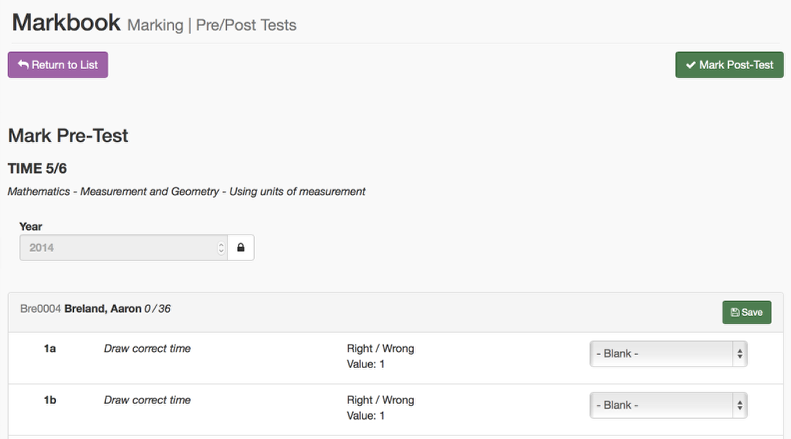
If you have selected an individual student from the "Student or Cohort" selection menu, then you will see only that student and all the questions ready to be marked for that student.
In this example we are marking a Pre & Post test with Right/Wrong Answers only:
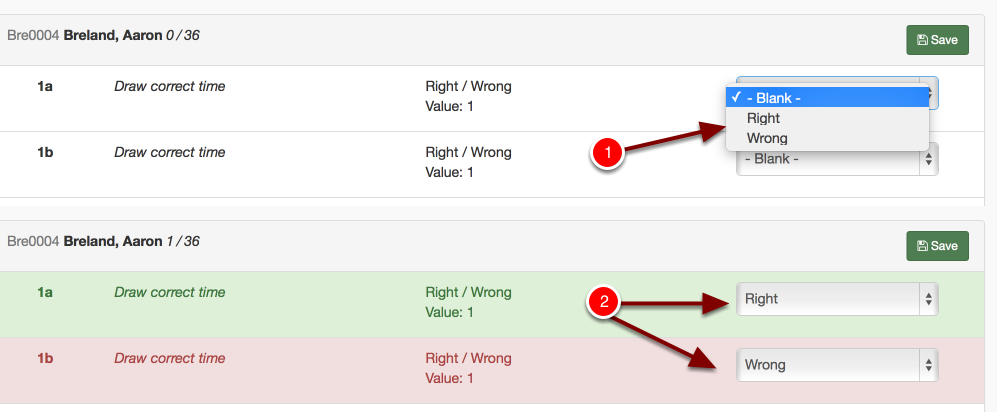
- Click on the question and select either Right or Wrong.
- Once you have selected the answer, the question will be coloured green if it is correct or red if it is incorrect.
- Continue to mark down all the results for this student to the end of the test.
Once you have finished marking all the questions for that student, click the Save button to save their results.
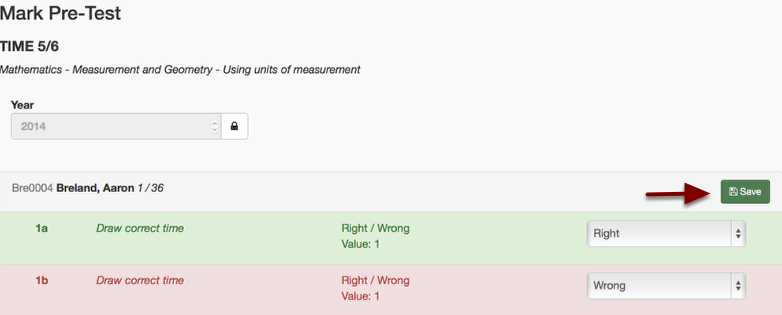
Once you select Save you will see a confirmation message for that student.

PRO TIP: You can quickly mark a test using keyboard shortcuts on your computer
- First, select the first question in the test and enter the correct result.
- Then hit tab on your keyboard to be automatically taken to the next question.
- From here, you can quickly enter the results by using the following keyboard shortcuts:
- For Right/Wrong Questions: Hit R for Right and W for Wrong
- For Closed Response Questions: Enter the correct answer eg 54, or the correct word eg Dog
- For Partial Credit Questions: Enter the score
- For Multiple Choice Questions: Enter A, B, C, D, or E
- For Custom Questions: Enter the correct answer, e.g. Dog, Cat, Bird, etc.
Mark a Cohort of Students
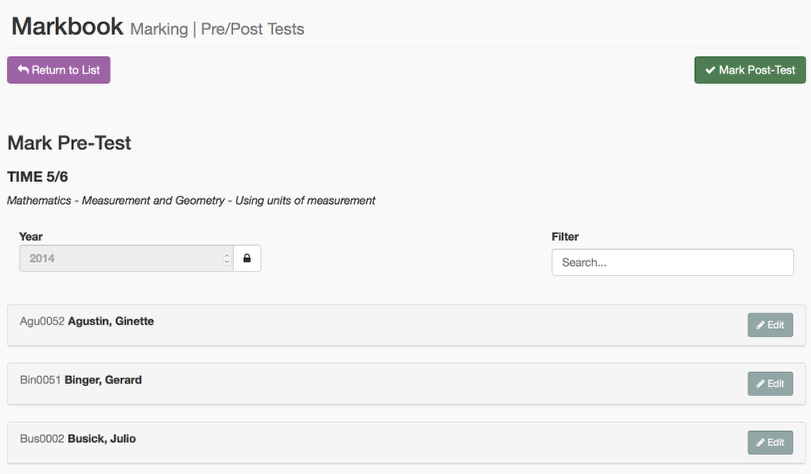
If you have selected a cohort of student's from the "Student or Cohort" Selection menu, then you will see a list of all the students in that cohort ready to be marked.
To find a student to mark, you can either scroll down the page and find the student or use the search option.
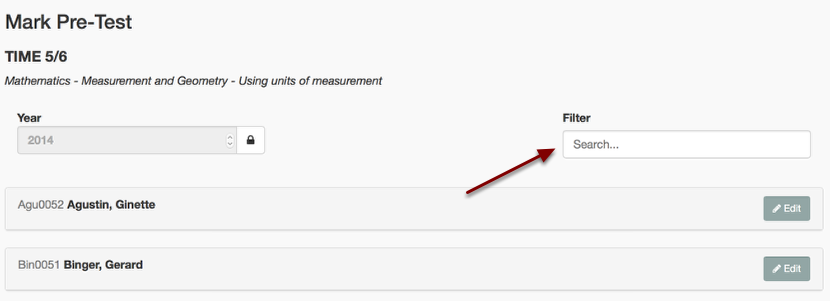
When you have found the student you would like to mark, click the Edit button next to that student.

A list of all the questions for that student will open up. In this example we are marking a Right/Wrong question only.

- Click on the question and select either Right or Wrong.
- Once you have selected the answer, the question will be coloured green if it is correct or red if it is incorrect.
- Continue to mark down all the results for this student to the end of the test.
Once you have finished marking all the questions for that student, click the "Save" button to save their results.
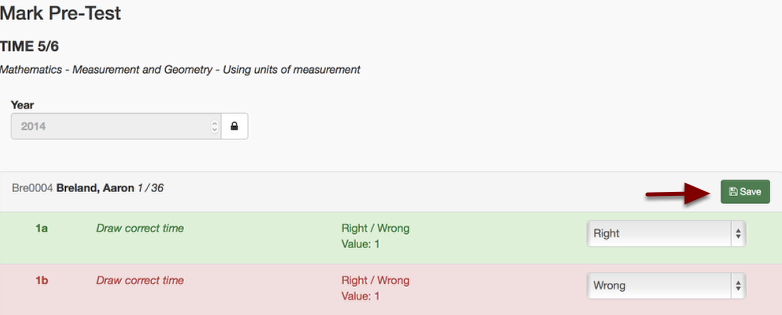
The student's results will be saved, and you will then see a list of all the students remaining to be marked.

Continue down the list of students and finish marking and saving all the students in that cohort.
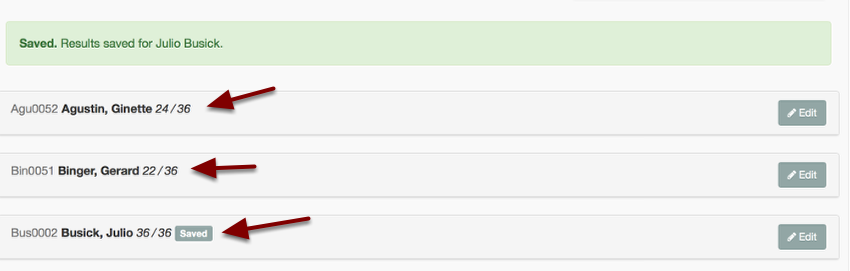
You will see a summary of the number of correct answers next to each student — this is a simple way to know if you have already marked that student.
You have now finished marking the Pre/Post test for this Student/Cohort. You can now choose another student or cohort to mark or move on to another section.
Last modified: Thursday, 1 June 2023, 3:28 PM