
Completion requirements
In this section, we will learn how to export your Teacher Judgment data out of QuickVic for use in SPA.
Step 1
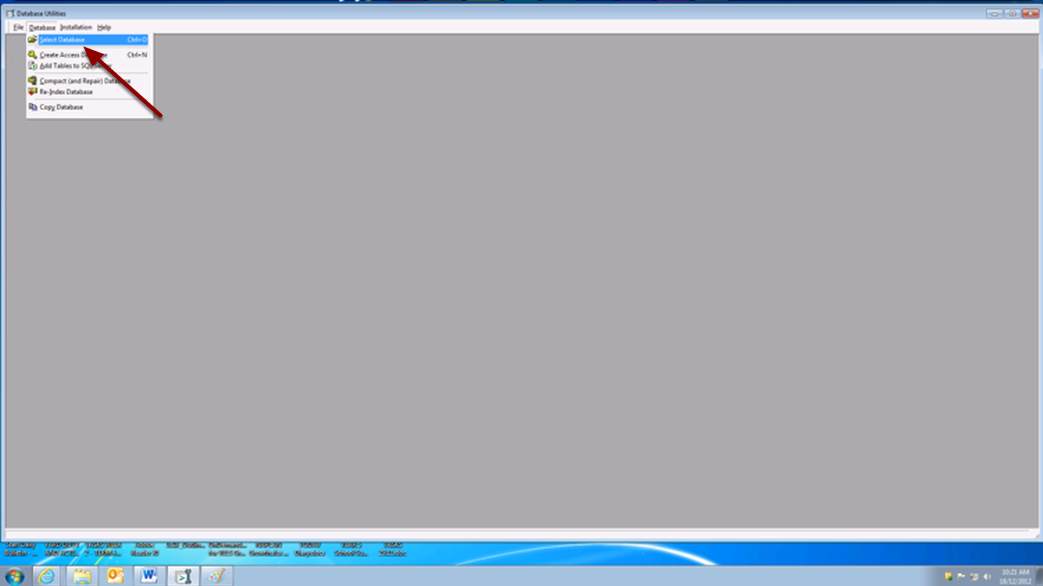
Select the correct database for the year and semester you would like to export:
You should then see this screen:
Click Open again on the previous screen. You should then see the message below.

Step 2
Export the data for uploading into SPA:
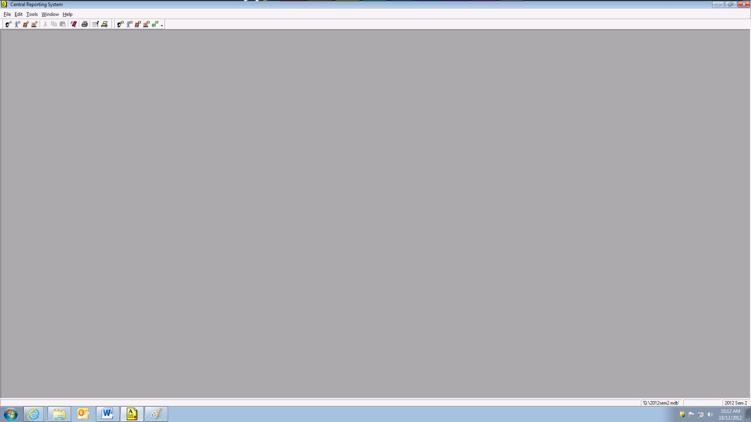
- Select File
- Export
- Student XML
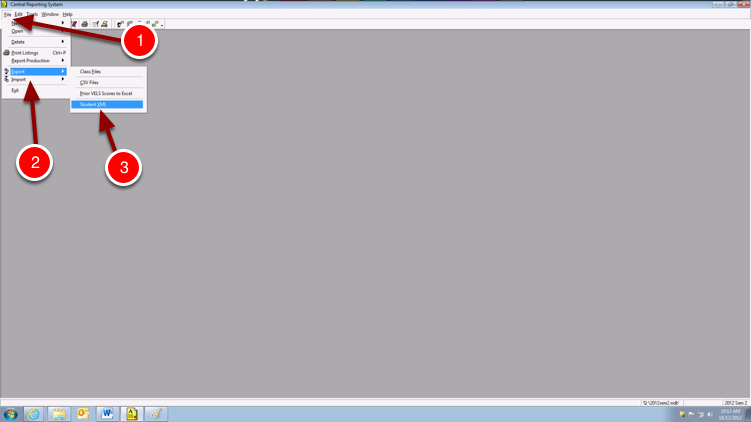
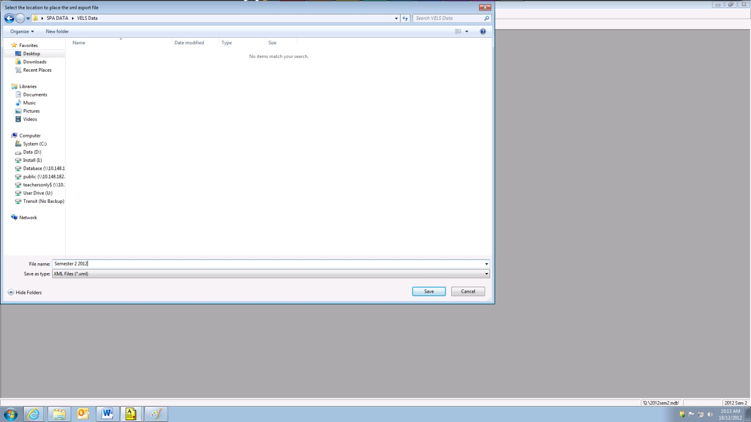
You will then be asked where you would like to export the file to and what name you would like.
Open the Database utility and click “Select Database”.
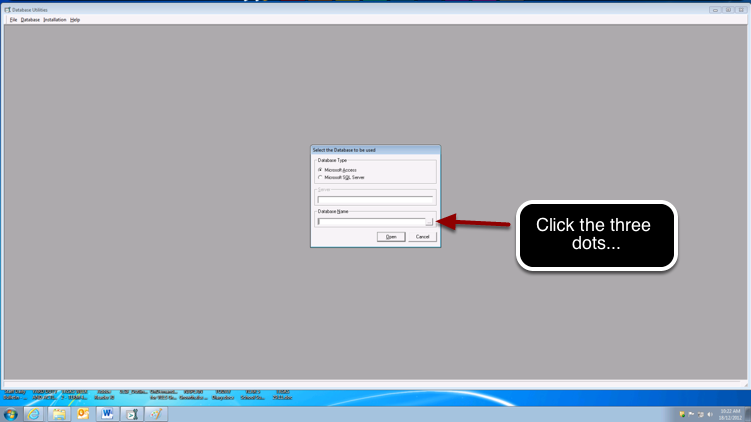
Click on the box with the 3 little dots next to “Database Name”.
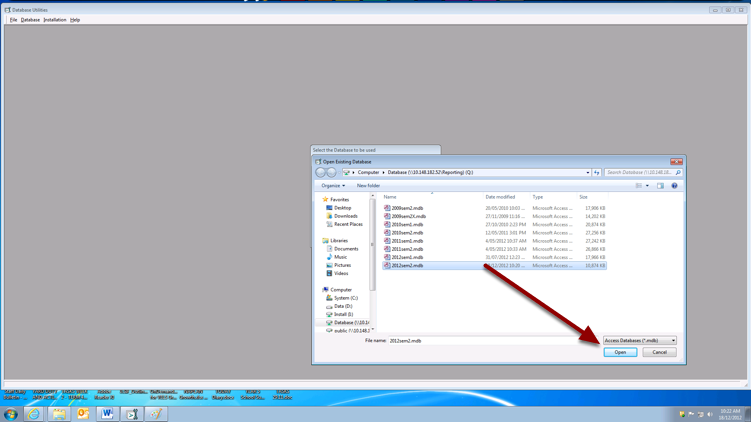
You will then need to navigate to where the QuickVic Databases are stored on your school's server. Your IT tech or office admin will know where these files are. Once you have found them, select the database of the year and semester you would like to export and click Open
Click OK and you can then close the database utility.
Open the Central Reporting System
We suggest calling the file 'TJ 20xx semester X', replacing the x’s with the year and semester you are exporting. However, you can call it anything you like.
Once you have done that you are done! If you need to export another year and semester return to step one and repeat the same process.
Last modified: Thursday, 4 August 2022, 11:23 AM