
Completion requirements
In this section, we will learn how to create the data needed to import your TORCH written testing into SPA.
Step 1
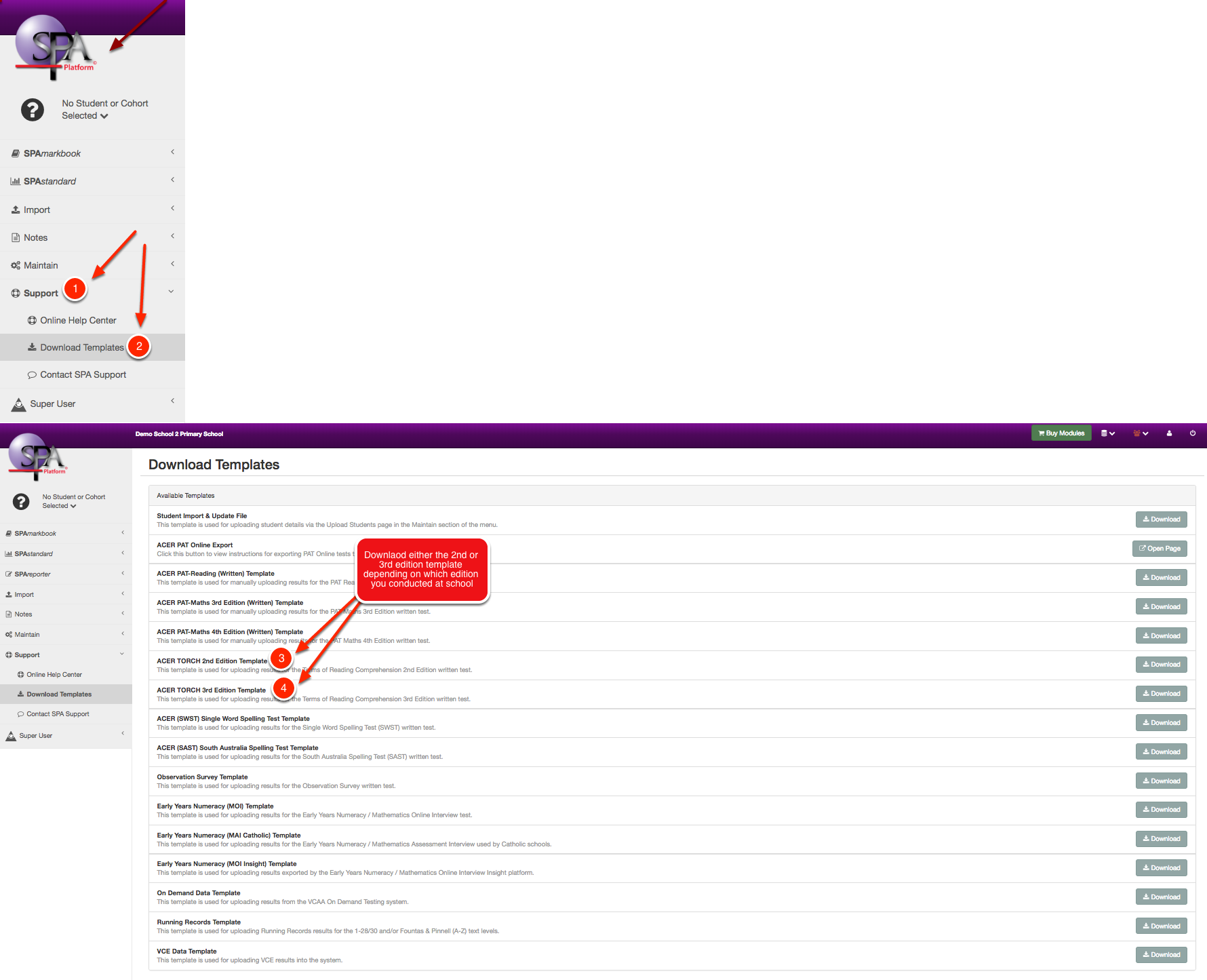
Download the 2nd or 3rd Edition TORCH template.
Step 2
Open the Template:
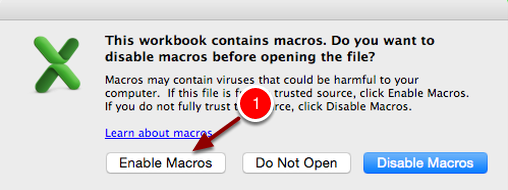
Open the downloaded template., making sure to click "Enable Macros" when opening the file.
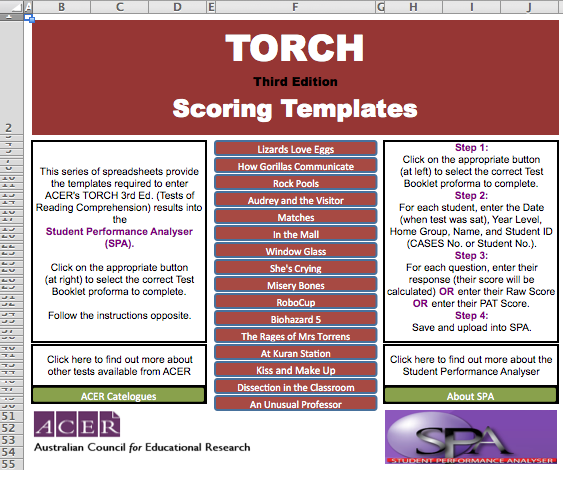
Once opened it should look like this:
Step 3
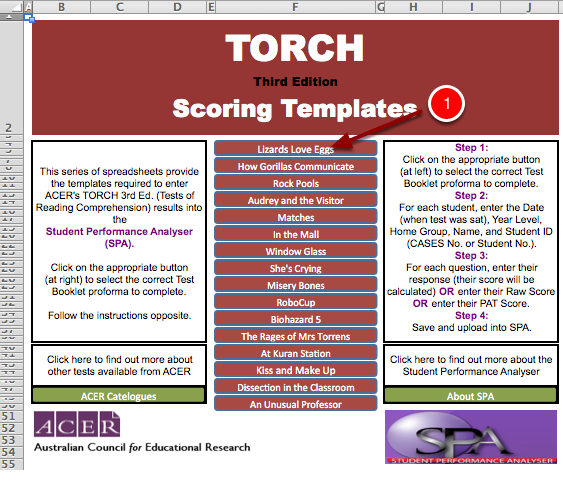
Select the test you would like to mark:
Click on the appropriate button to select the correct Test Booklet proforma to complete.
Step 4
Fill out all of the information in Columns A-F:
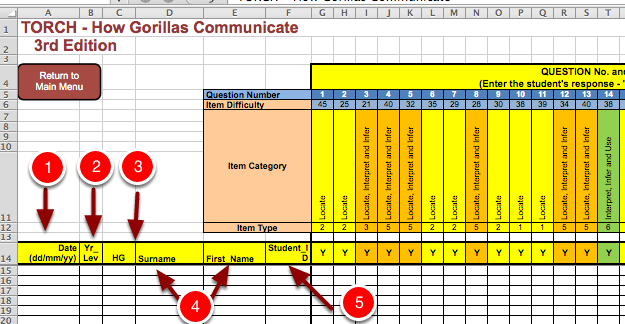
For each student, enter the:
- Date (when test was sat) (pay attention to the correct date format, dd/mm/yy)
- Year Level
- Home Group (optional)
- Student Name (first and last)
- Student ID (Student No.)
Please Note! These are self-marking templates. Please be very careful not to remove the formatting on the cells or any formulas that are in them, or else the templates will not work correctly.
Step 5
Enter the Student Responses:
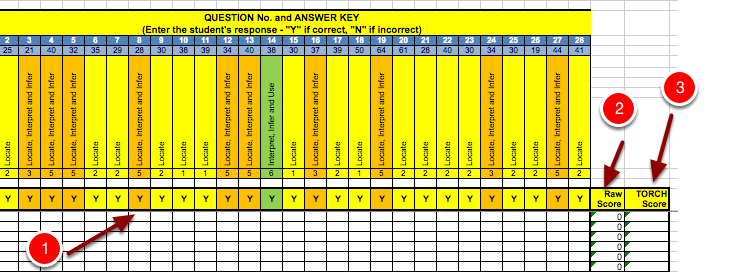
For each question, you have 3 ways to enter the results:
1. Enter their response as Y/N or A, B, C, D depending on the template (their score will be calculated automatically)
OR
2. Enter their Raw Score (TORCH Score will be calculated automatically)
OR
3. Enter their TORCH Score.
Step 6
Save the file:
Once you have entered all the results into the template you are now ready to save the file to your computer.
Last modified: Thursday, 4 August 2022, 11:22 AM