
Completion requirements
This page will provide instructions on how to export Essential Assessments online tests and import them into your SPA account.
Step 1
Log in to your Essential Assessments account

Enter your school code and password for your account. Then click 'Sign In".

Step 2
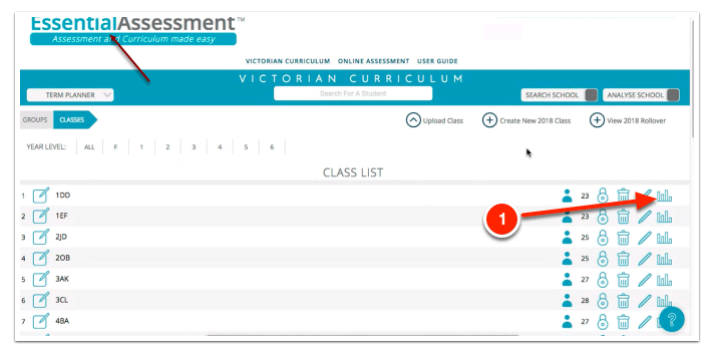
Once you have logged in, you will be taken to this screen. From here, click the graph-shaped icon next to one of the classes.
Step 3
Choose the calendar year of data you wish to export.

Step 4
Click the 'Export Options' button, located in the top right-hand corner of the screen.

Step 5
Click Export Data (SPA).

Step 6
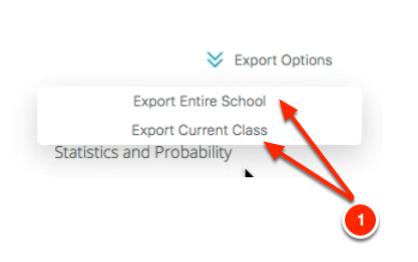
Select either 'Export Current Class' to get one class of data only, or 'Export Entire School' to get data for all classes in one file.
Last modified: Thursday, 15 August 2024, 9:17 AM