
Completion requirements
In this section, we will learn how to enter data into the Magic Words template for use in SPAstandard.
Step 1
Download the Magic Words Template.

Step 2
Open the Template:
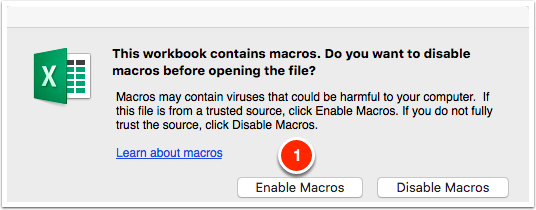
Open the downloaded template, making sure to click "Enable Macros" when opening the file.
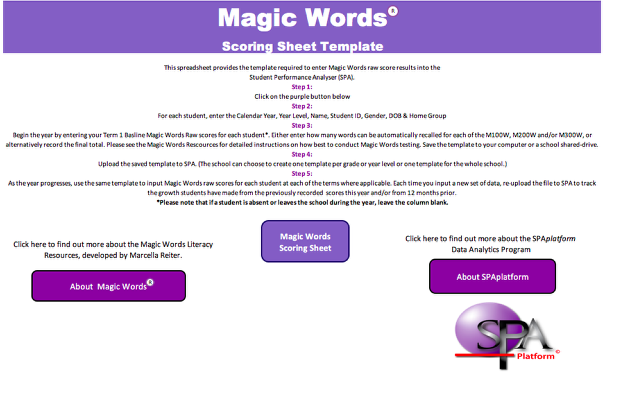
Once opened it should look like this.
Step 3
Click on the Magic Words Scoring Sheet button.

Step 4
Fill or paste in all the information in Columns A-H.

For each student, enter the:
- Calendar Year
- Year Level
- Surname
- First Name
- Student ID
- Gender
- Date of Birth
- Home Group/Class
Step 5
Next, input scores into the data columns I-AB.
Begin the year by entering your Term 1 Baseline Magic Words Raw scores for each student. As the year progresses, use the same template to input Magic Words raw scores for each student at each of the terms where applicable. Each time you input a new set of data, re-upload the file to SPA to track the growth students have made from the previously recorded scores this year and/or from 12 months prior.
If a student is absent or leaves the school during the year, leave those columns blank.
You have two ways to enter a score for each student.
OPTION 1: Enter how many words can be automatically recalled for each of M100W, M200W, and/or M300W, and the spreadsheet will automatically tally a total score for you.
OPTION 2: Alternatively, record the final total score.
Please see the Magic Words Resources for detailed instructions on how best to conduct Magic Words testing.

Step 5
Save the file:
Once you have entered all the results into the template you are now ready to save the file to your computer. Upload the saved template to SPA.
FYI: The school can choose to create one template per grade or year level, or one template for the whole school, or for each year level.
Last modified: Thursday, 4 August 2022, 11:20 AM