
Completion requirements
In this section, we will learn how to create the data needed to import your Observation Survey Data into SPA.
Step 1
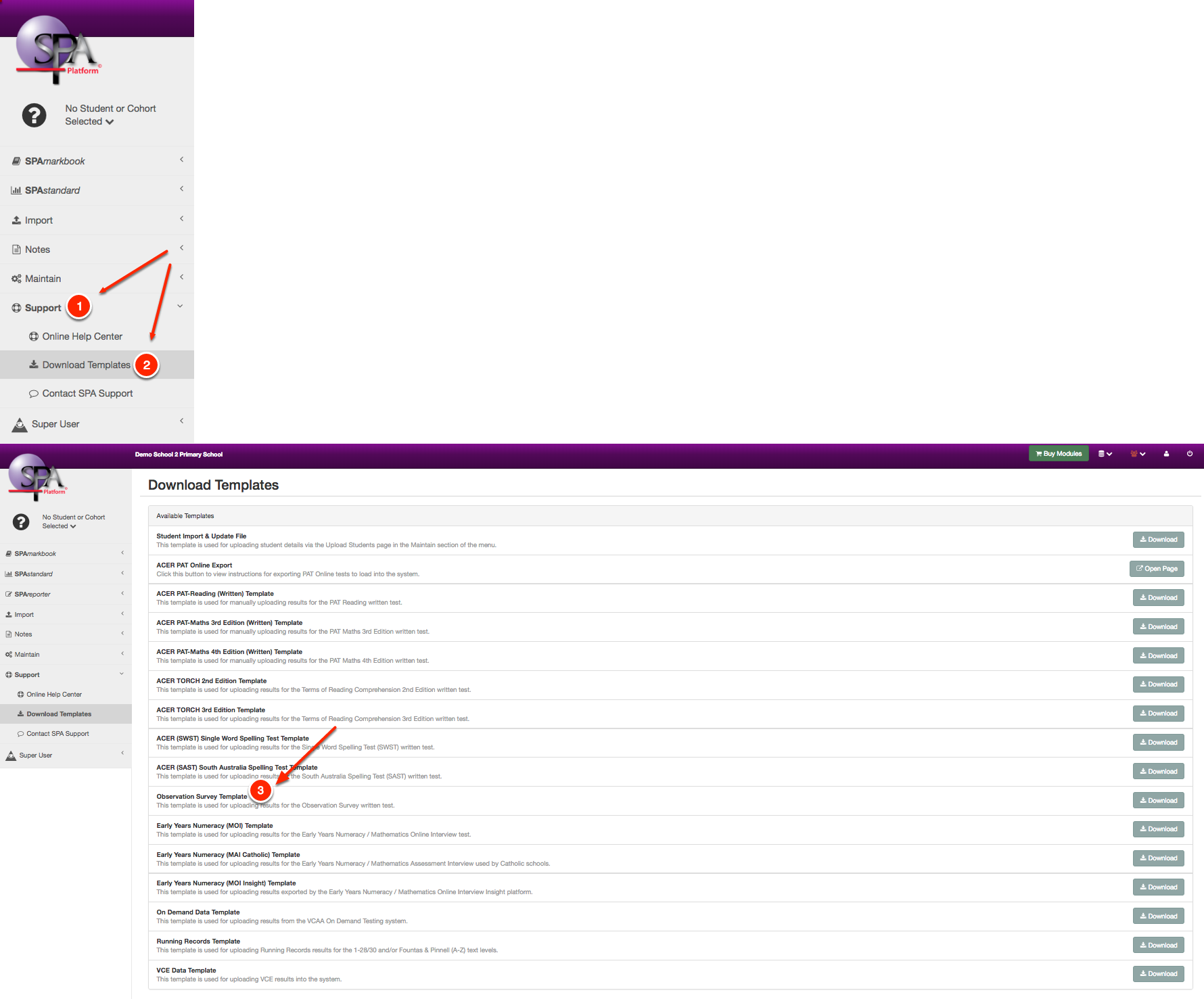
Download the Observation Survey template.
Step 2
Open the Template:
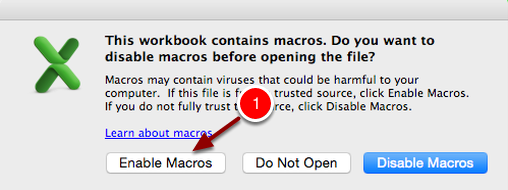
Open the downloaded template, making sure to click "Enable Macros" when opening the file.
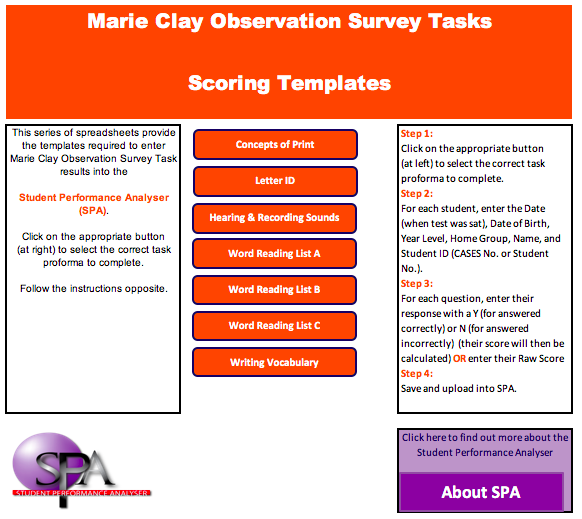
Once opened it should look like this:
Step 3
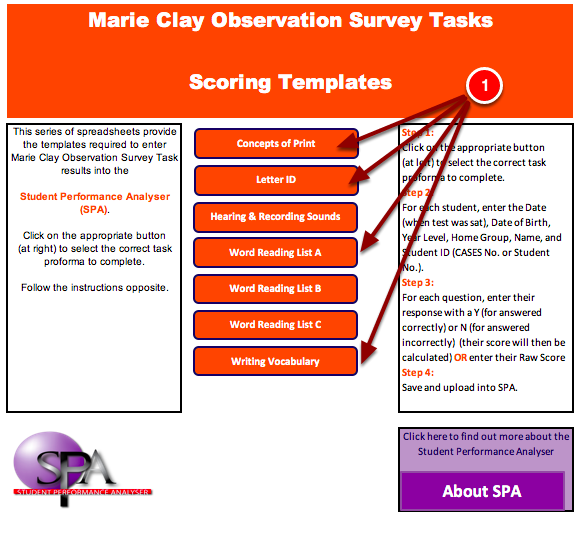
Select the test you would like to mark.
Step 4
Fill out all of the student details in the first few columns marked 'required'.
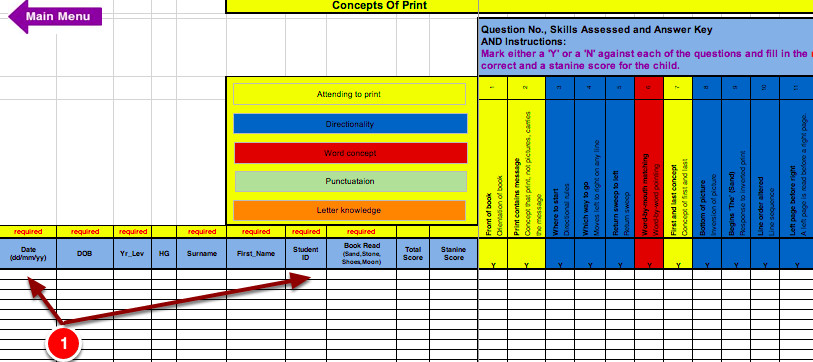
For each student, enter the:
- Test Date (e.g. 08/02/18)
- Date of Birth
- Year Level
- Home Group (optional)
- Surname
- First Name
- Student ID (Student Number)
Step 5
Enter the student responses or raw score:
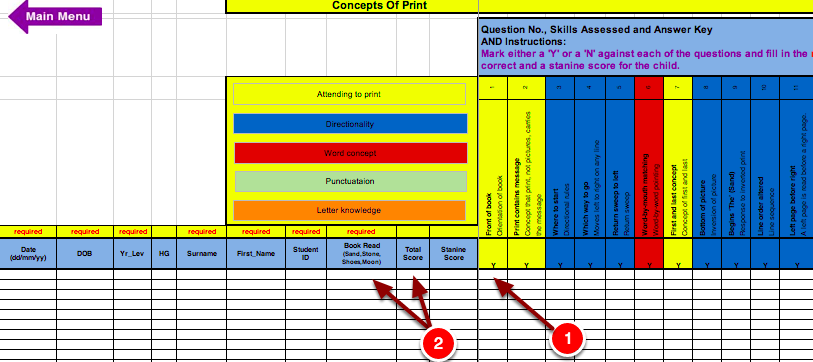
OPTION 1: For each student, you can either choose to input a 'y' for a correct response or an 'n' for a wrong response. If you choose this option, the raw score and Stanine score will be automatically calculated for you.
OPTION 2: For each student, you can choose to enter a raw score. The Stanine score will be automatically calculated for you.
Please Note! These are self-marking templates. Please be very careful not to remove the formatting on the cells or any formulas that are in them, or else the templates will not work correctly.
Step 6
Save the file and return to the main menu:
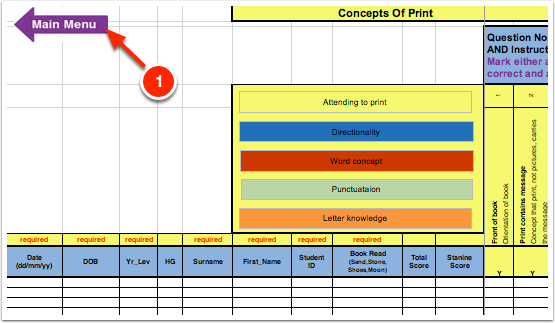
Once you have entered all the results into the template, you are now ready to save the file to your computer.
Step 7
Repeat steps 3-6 until you have filled in results for each assessment template your students have undertaken. If they have not completed all assessments, leave the template(s) blank. Make sure you don't have student details listed in templates where they have not undertaken the assessment.
Step 8
Last modified: Thursday, 4 August 2022, 11:19 AM