
Completion requirements
In this section, we will learn how to create the data needed to import your SAST testing into SPA.
Step 1
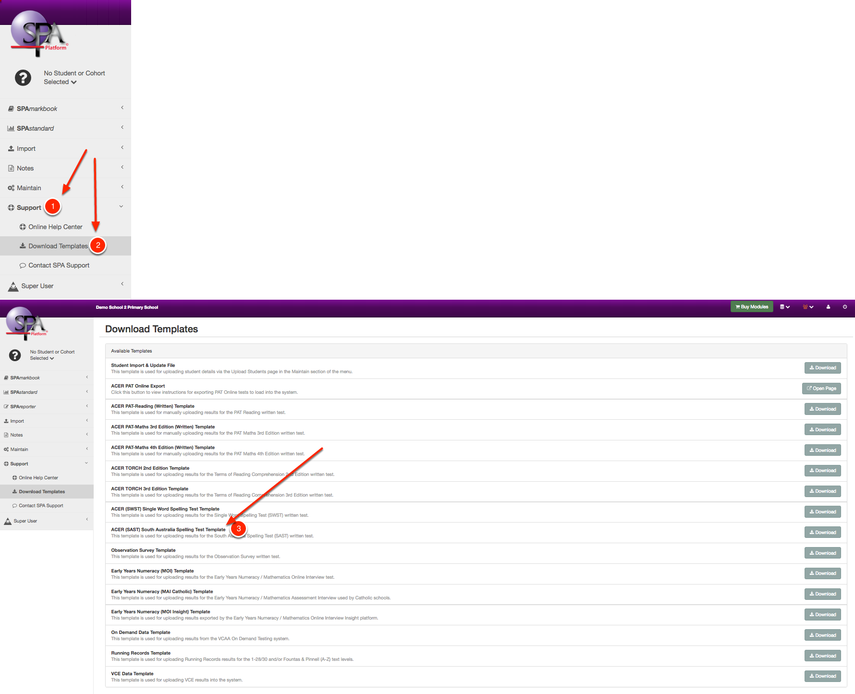
Download the South Australian Spelling template.
Step 2
Open the template:

Open the downloaded template, making sure to click "Enable Macros" when opening the file.
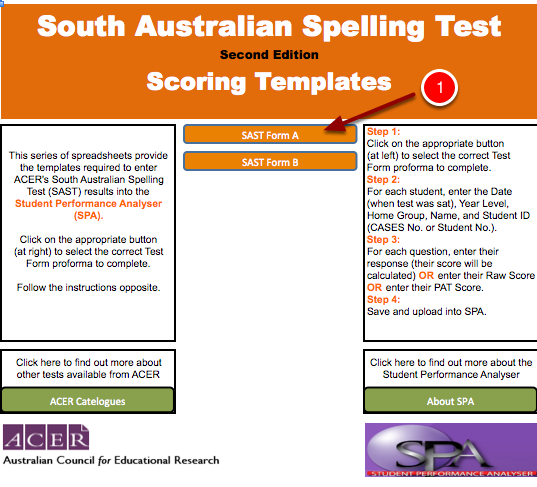
Once opened it should look like this:

Step 3
Select the test you would like to mark:
Click on the appropriate button to select the correct Test Booklet proforma to complete.
Step 4
Fill out all of the information in Columns A-F:

For each student, enter the:
- Date (when test was sat) (pay attention to the correct date format, dd/mm/yy)
- Year Level
- Date Of Birth
- Student Name (first and last)
- Student ID (Student No.)
Please Note! These are self-marking templates. Please be very careful not to remove the formatting on the cells or any formulas that are in them, or else the templates will not work correctly.
Step 5
Enter the Student Responses:

For each question, you have 3 ways to enter the results:
1. Enter their response, Y/N or A, B, C, D depending on the template (their score will be calculated automatically)
OR
2. Enter their Raw Score (Spelling Age will be calculated automatically)
OR
3. Enter their Spelling Age in the following format: yy.mm — e.g. 10.01 would be 10 years 1 month, 10.11 would be 10 years 11 months, and so on
Step 6
Save the file:
Once you have entered all the results into the template, you are now ready to save the file to your computer.
Step 7
Last modified: Thursday, 4 August 2022, 11:19 AM