
Completion requirements
In this section, we will learn how to export our NAPLAN data for use in SPAstandard.
Step 1
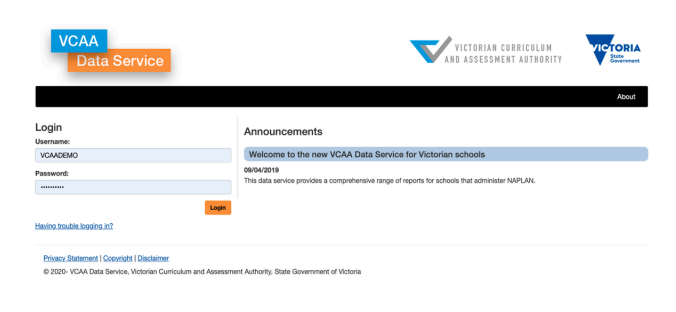
Navigate to the VCAA data service website and log into your school's account.
VCAA Data Service
https://dataservice.vcaa.vic.edu.au/
Step 2
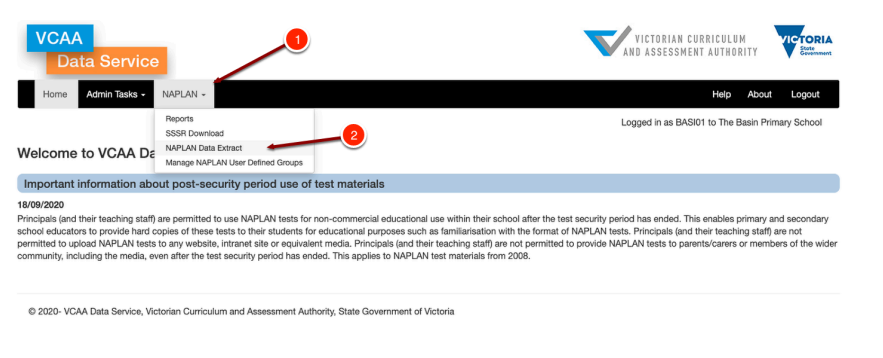
Click the NAPLAN header in the top ribbon, then choose the NAPLAN Data Extract Option on the following screen.
Step 3
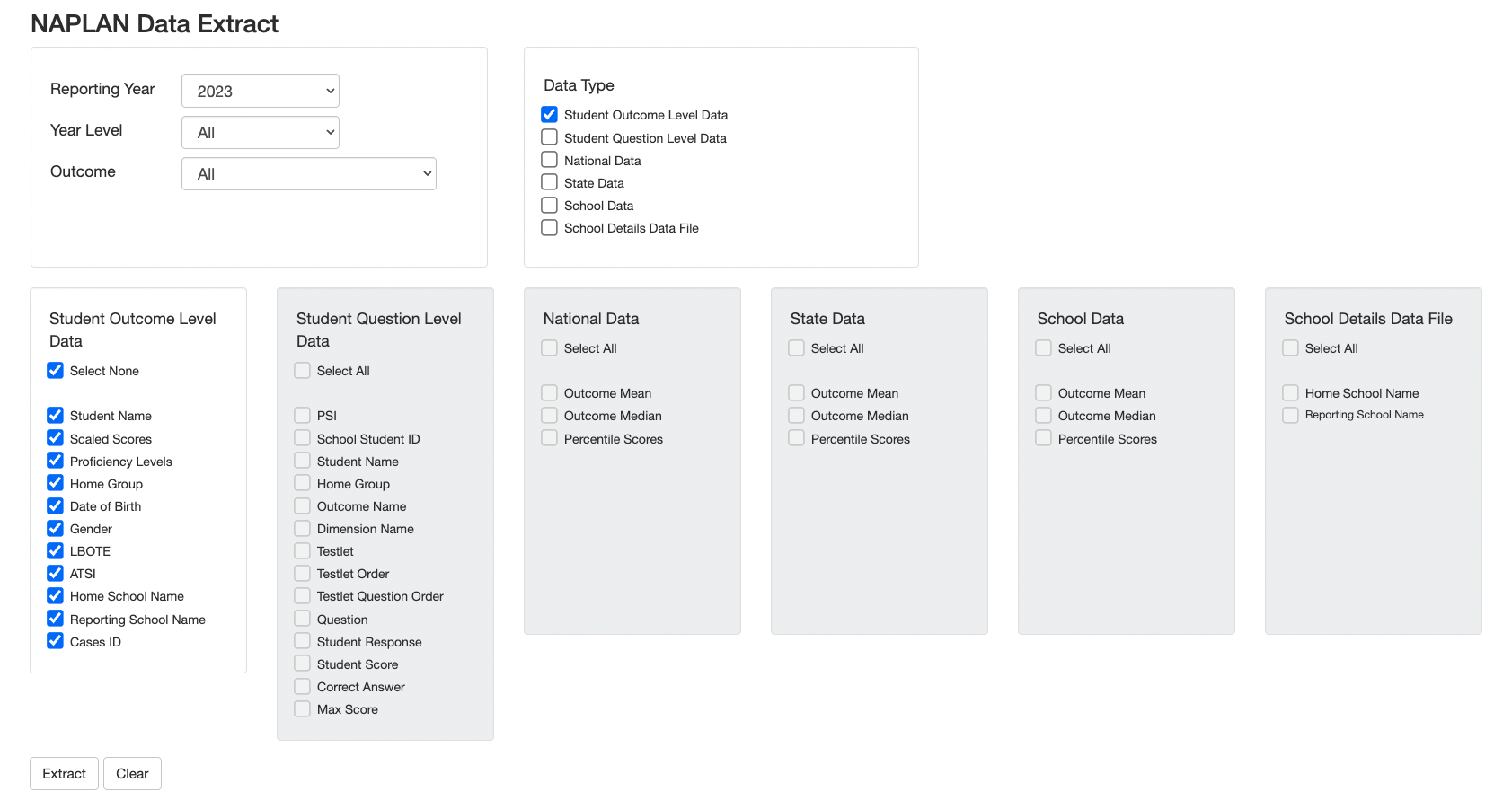
Select data to extract:
- Select the year you want to extract
- Select ALL for the Year Level
- Select ALL for Outcome
- Tick Student Outcome Level Data
- Make sure all boxes remain ticked under the categories of Student Outcome Level Data
- Click Extract
As of 2023 you do not need to upload the Student Question Level data.
Step 4
The file will now download to your computer.
Step 5
Unzip the downloaded file.
Step 6
Rename the files.
We suggest adding the word NAPLAN and the calendar year to each file name:
2026_NAPLAN_StudentOutcomeLevel_Yr3.csv
2026_NAPLAN_StudentQuestionLevel_Yr5.csv
However, it does not matter what you call the files, just so long as you understand what they are.
Step 7
Last modified: Monday, 13 July 2026, 1:49 PM