
Completion requirements
Learn how to import test results via the upload of an excel spreadsheet, as opposed to marking each student within the software. This option is appropriate for schools that may have had students engage in an online test such as using a Google Form, Khaoot Quiz or even uploading Insight Platform Assessments (Victorian Schools).
Make sure that you have manually 'designed' the test inside SPAmarkbook first before you go to upload the results. The design process tells the software what the questions are and how you would like the test to be marked/scored.
Step 1 - Choose a cohort to be marked
- Choose the 'select student or cohort' option from the top left-hand corner of the screen.
- Click the arrow next to the calendar year.
- Choose the arrow next to class.
- Select the class you wish to upload data for.

You can select a year level if preferred, or use the advanced cohort selector to get more specific about the group of students you wish to mark.
Step 2 - Select mark a pre-post test
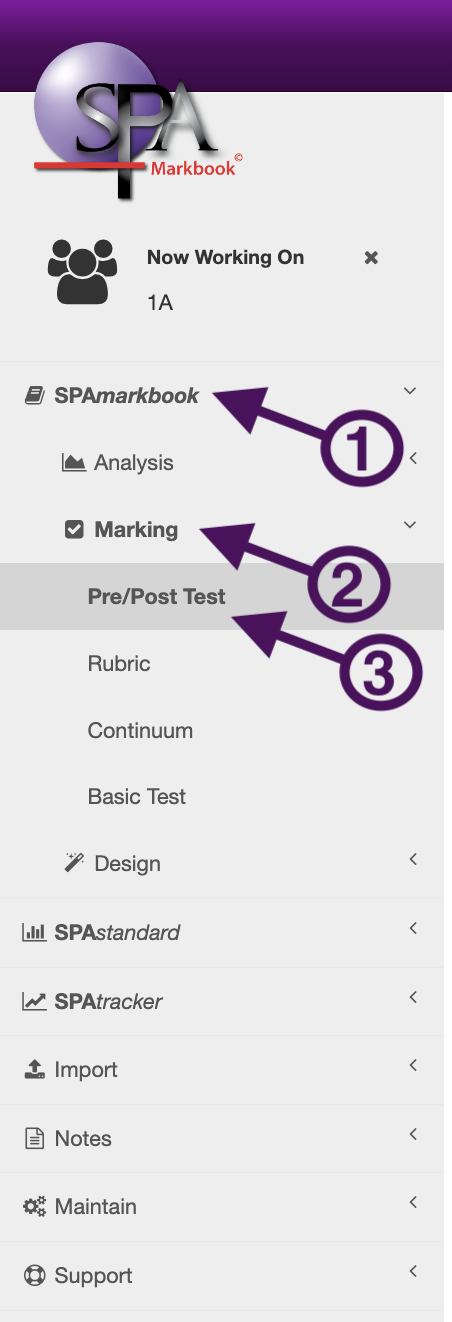
- From the menu, select 'SPAmarkbook', 'Marking', 'Pre-Post Test'.
Step 3 - Choose the test to be marked
- Find the test you wish to upload results for by either finding the name of the test in the list or using the filter or search bar to filter the list of tests down first before finding the test.
- Select the 'upload' button next to the test name.
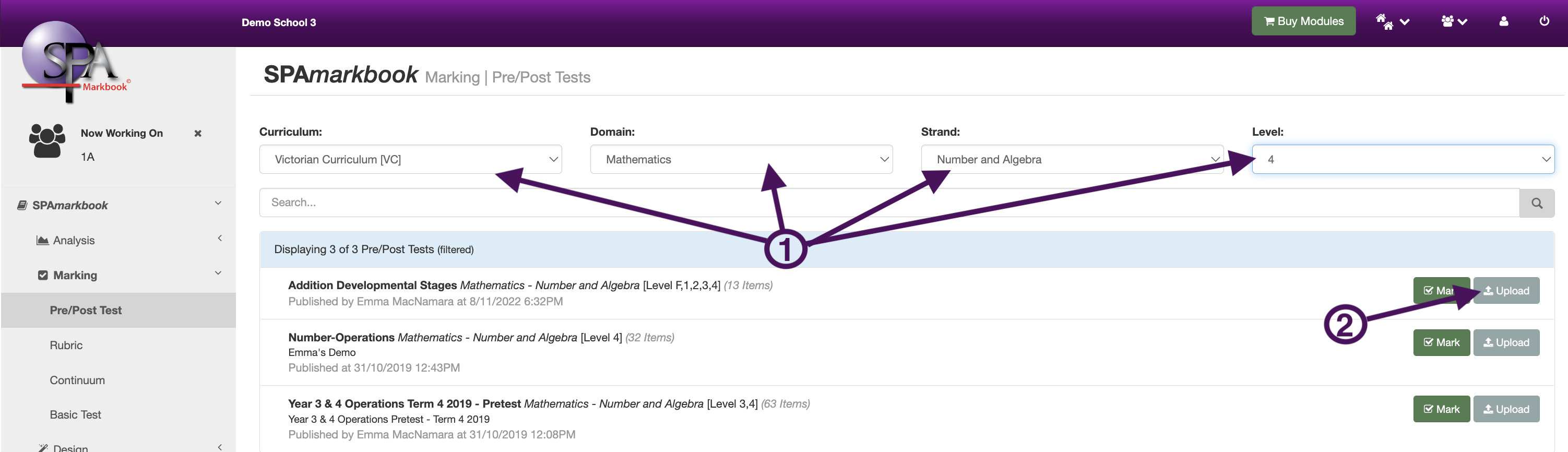
Note- When you design a test, you are asked to tag the test to a Domain & Strand (and possibly tag the test to a year Level/s the test may suit). Doing this will help you find your tests more quickly rather than searching pages of test names. Think of these drop-down filters like 'folders'.
Step 4 - Download the Template
- Select the 'Download Template' button in the top right-hand corner of the page. This will now download an Excel template to your computer.
An exciting feature we've built in is that, because you've already selected your cohort, the students’ names and ID numbers are automatically pre-populated in the template. We hope this handy feature saves you a heap of time!

Step 5 - Fill in the Template
-
Fill in the test date for all students.
PRO TIP: The quickest way to do this is:-
Enter the date in the format 17/01/2023 into cell D13.
-
When you click away, a timestamp will automatically appear—this is expected, leave it as is.
-
Enter the same date in D14.
-
Select both D13 and D14, then move your cursor to the bottom-right corner of the selection.
When your cursor changes to a black cross, click and drag down to the last student.
This will copy the date (with timestamps) for all students.
-
-
Enter or paste each student’s responses.
Make sure the responses match the question style and answer format used in the test.
(Refer to rows 6–12 of the Excel template for more detail about each question.) -
Save the completed template to your computer or shared drive, ready for upload.

Right answers can be entered as follows:
- Right or 'r',
- Yes or 'y',
- True or 't'
- Correct or 'c',
- 1
- ✓ or
 or
or 
- Enter the correct 'closed response' answer (as displayed in row 7 against each question).
- Enter the correct 'multiple-choice' letter answer (as displayed in row 7 against each question).
- Enter the top 'partial credit' score.
- Enter the correct 'custom multiple-choice' answer (as displayed in row 7 against each question)
Wrong responses can be entered as follows:
- Wrong or 'w'
- No or 'n'
- False or 'f',
- Incorrect or 'i'
- 0
- x or ✗ or ✘ or

- Enter the student's incorrect 'closed response' answer.
- Enter the student's incorrect 'multiple-choice' letter answer.
- Enter the student's 'partial credit' score.
- Enter the student's incorrect 'custom multiple-choice' answer.
NOTE: You can remove students from the Excel template without any issues when uploading the file to SPAmarkbook. However, if you add a student to the Excel file, they must already be an active student in SPAplatform. During the upload process, the system will notify you if any students in the file are not currently active. If this occurs, you’ll need to add the student to SPAplatform before re-uploading the file. Contact the SPAteam for support if you need assistance.
Step 6 - Navigate back to marking the 'upload' page
- Navigate back to the upload test results page if required (follow steps 1-3 again if required).
- Either select the 'Browse' button and find the excel file on your computer/shared drive. Or drag and drop the excel file into the drag & drop box.

Step 7 - Upload File
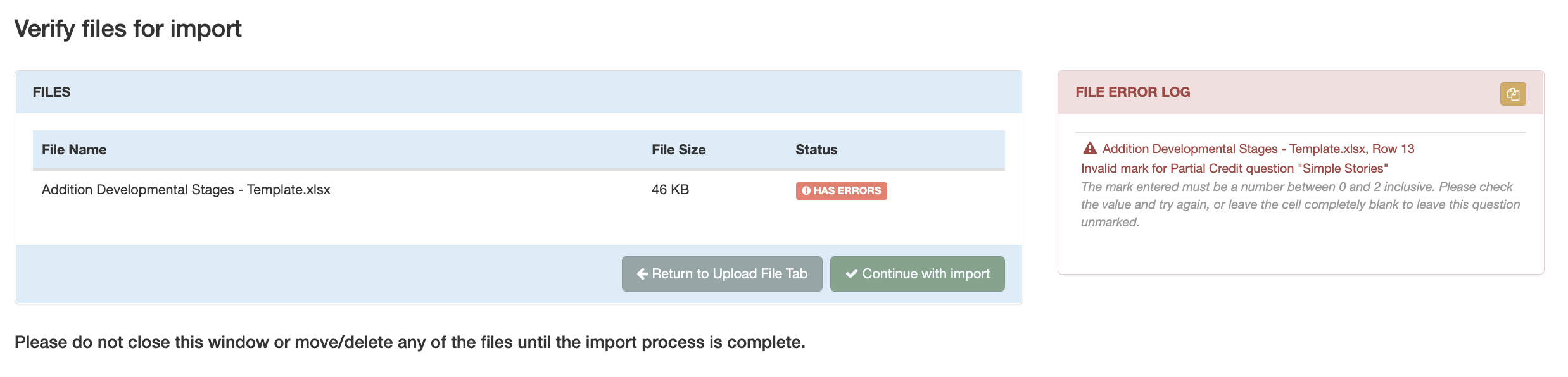
- If there are no errors in the file, you will be able to select 'Continue with Import. The data will be loaded into SPAmarkbook and you are now ready to navigate to the 'Analysis' section of SPAmarkbook to see your results.

NOTE - If there are errors in your file, read the error log and act accordingly.
NOTE: If you attempt to upload a file with the same test date as an existing upload, the system will display a prompt asking: "Are you sure you want to Overwrite Existing Data?"
This prompt is designed to help prevent accidental overwriting of pre-test data with post-test data (or vice versa), especially if the test date hasn't been updated correctly in your Excel file.
If you are intentionally correcting incorrect data, you may choose to overwrite—but please proceed with caution. Once overwritten, the original data cannot be recovered by the SPAteam.
If you're unsure, we recommend contacting SPA support before continuing.

SPA support Team:
support@sreams.com.au
or 0488 003 069
Last modified: Friday, 13 June 2025, 9:47 AM