
Completion requirements
Step 1: Go to the VCAA
Go to the VCAA Assessment portal via the below link and select the appropriate login portal.
vcaa.vic.edu.au login portal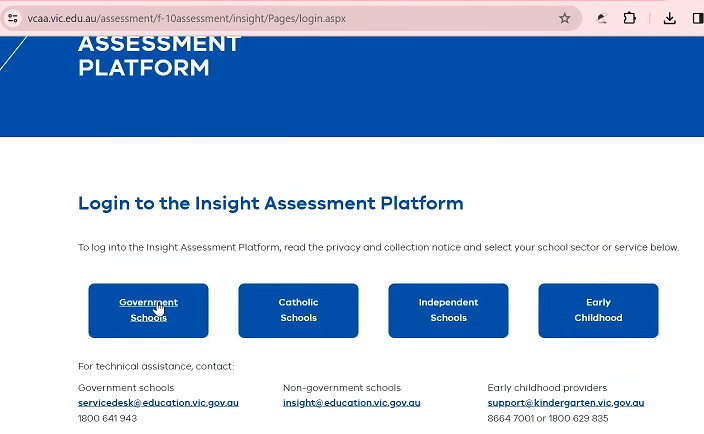
Step 2: Log in to the Insight Platform
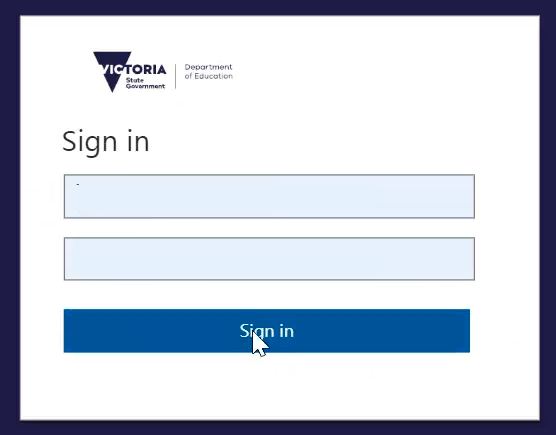
Step 3: Click on Reporting then Reporting Dashboard

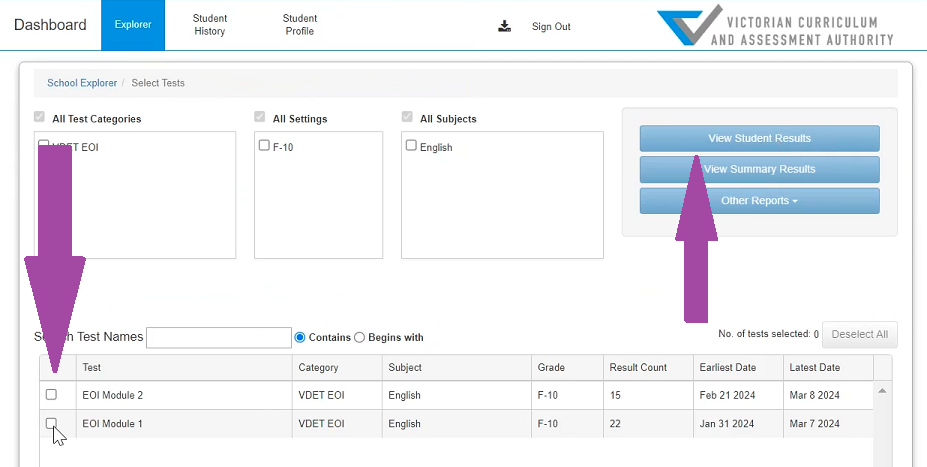
Step 4: Select All test types. Then click Select Data

Step 5: Select the Test modules you want to export and Click view student details.
Step 6: Click Select columns
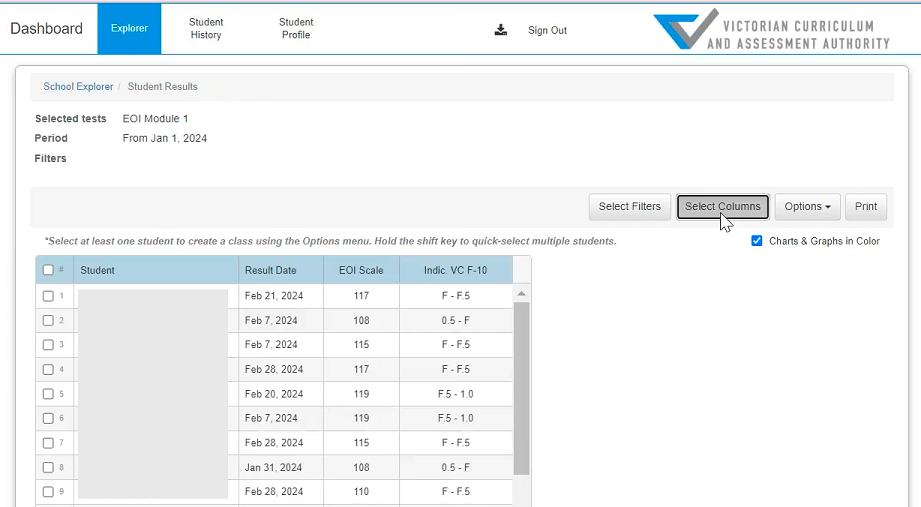
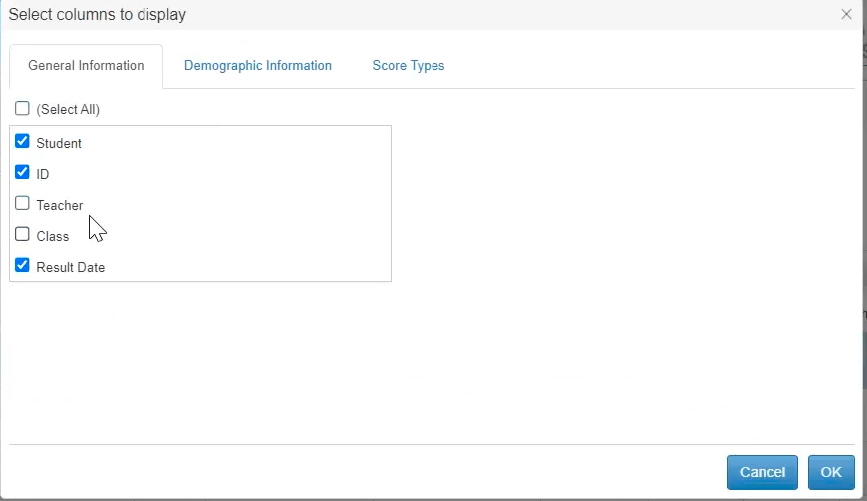
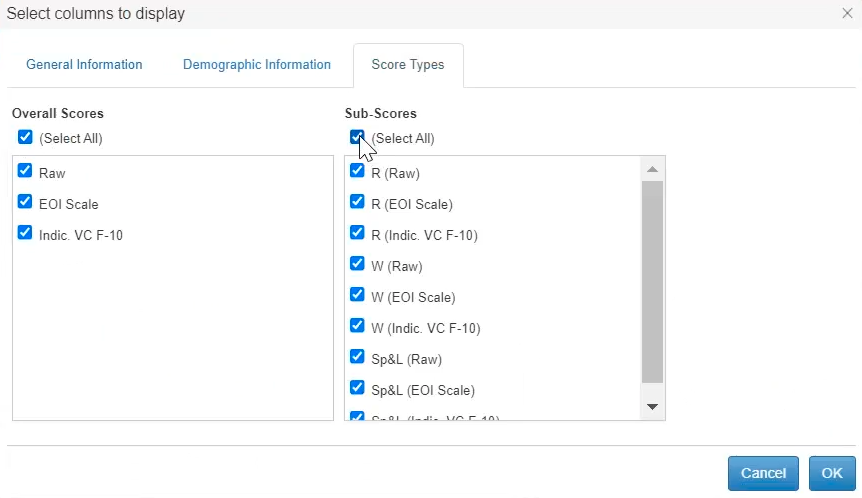
Step 7: Selecting the columns.
Under the General Information Tab select - Student, ID, and Results.
Do not have any options ticked in the Demographic Information Tab.
Score Type - Click Select All for both Scores and Subscores.
Step 8: Export Results as CSV
1) Select Options
2) Select "Export as CSV (for Excel)
The files will then be downloaded to your computer.

Step 9: Download the English Online (EOI Insight) Template.
Once you have clicked on the template your computer will either download the file directly to your downloads folder or it will ask you where you would like to save the file.
Save the file to a location where you can easily access it.

Step 10: Open the Template
Open the downloaded template. Making sure to click "Enable Macros" when opening the file.
Once opened it should look like this.
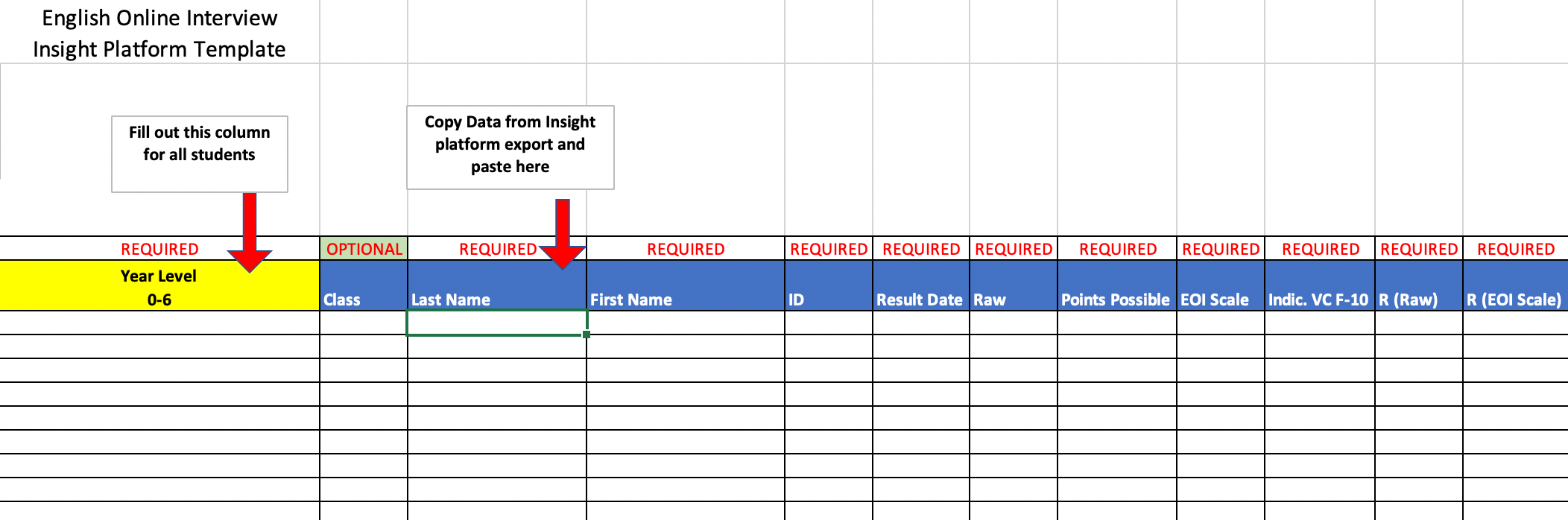
Step 11: Open the Insight Platform export file/s you have just downloaded from the insight platform and copy and paste the student details/results into cell C5 of our template. Then fill out all the information in Column A. Plus you can fill in Column B if you would like (but not essential).
Step 12: Save the file
Once you have entered all the results into the template you are now ready to save the file to your computer.
Last modified: Friday, 16 August 2024, 11:37 AM