
Completion requirements
In this manual, we will learn how to design and build a Rubric scoring/marking form for use in SPAmarkbook.
Learning tasks or observational checklists can be marked/scored using the rubrics section of the software. Inside SPAmarkbook rubrics allow you to store both the criteria and performance descriptors.
Step 1: Navigate to the Design Rubric section
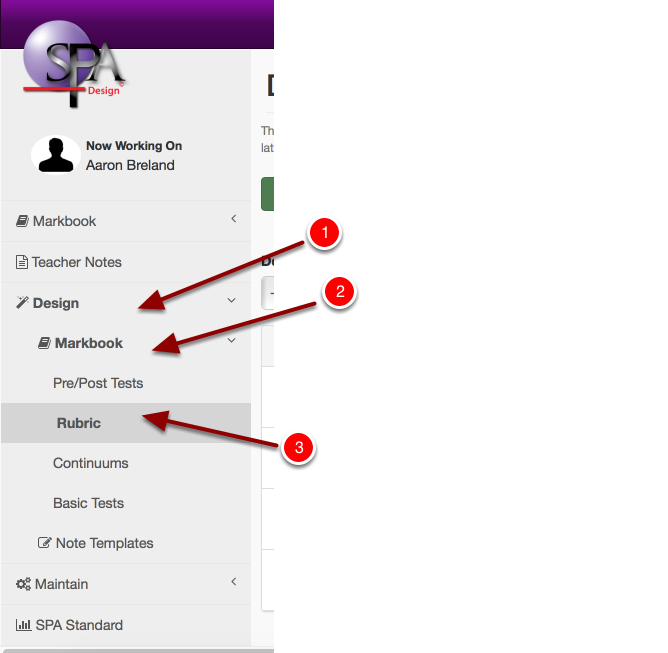
- Click SPAmarkbook.
- Then click 'Design'.
- Then click on 'Rubric'.
Step 2: Click on "Create New Rubric"

Step 3: Fill in the Rubric details

1. Give the rubric a Title (Required)
2. Select the Curriculum (Required)
3. Select the Domain (Required)
4. Select the Strand (Required) and type a Sub-Strand (Optional)
5. Select one or more Year Level(s) the rubric may be appropriate for (Optional)
This does not limit who you can mark the rubric for, it is just to help you tag your rubrics.
This does not limit who you can mark the rubric for, it is just to help you tag your rubrics.
Note: Hold down the Ctrl key or the shift key on a mac to select multiple-year levels.
6. You can also assign the rubric to multiple Domains and or Strands by clicking the green '+' button. (Optional)
Note: Assigning the rubric to a 'Domain/s', 'Strand/s', 'Sub-Strand/s' and 'Year Level/s', is a system of placing your rubrics into folders. By tagging them to one or more domains, strands & year levels, you will be able to filter your rubric lists down when you are looking for a specific rubric in the marking and analysis sections of the SPAmarkbook software. It will also be useful when you are viewing rubrics in SPAtarcker, you can filter assessments to display only the subject area assessments you are reviewing.
Step 4: Add Rubric criteria and fill in performance descriptor detail.
Please see details and instructions/advice for what to enter into the criteria & performance descriptor fields below.
1. Click the "Add Criterion" to add as many criteria as you need on your rubric.
Note: As you add criteria to your rubric, you will note a count of the number of criteria will appear in a small grey box just next to the "add criteria" button.
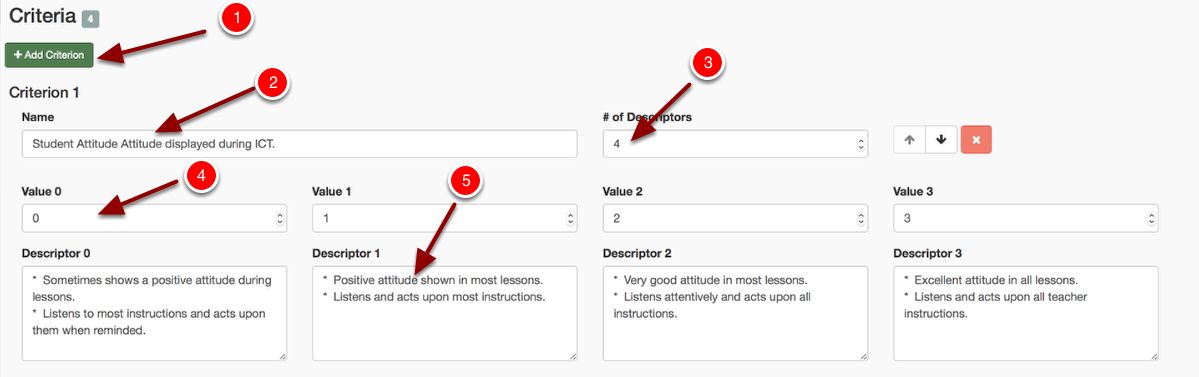
For each criteria that you add, fill in the details for each:
2. Choose the number of performance descriptors you need (required)
Note: The system will default to 4 performance descriptors. You can have up to 16 performance descriptors for each criterion.
If you would like to, you can have a different number of performance descriptors for each criteria.
3. Fill out the criteria 'Name' (required)
4. Label the criteria with a 'code tag'* (optional)
5. Label the criteria with a 'level tag' *(optional)
6. Label the criteria with a 'skill assessed' tag* (optional)
and then fill in the detail for each Performance Descriptor:
7. Set the scoring 'value'* of each performance descriptor (default is 0-3). It must be numerical, but you can use decimals if required. (required)
8. Give each performance descriptor a 'heading'* (optional but highly recommended)
9. Write the explanation text for each performance 'descriptor'*. (optional but highly recommended)
*See the explanation on what to enter into these fields below.
For each criterion that you add to your rubric, you have the option of filling in three additional fields. Below we will describe how these could be used to benefit you at the analysis stage of using SPAmarkbook.
Skill Assessed Field
This is one of the most useful fields to enter some text. Sometimes you might have a few criteria, that all form part of a bigger concept. By entering an overarching skill here, at the analysis stage within SPAmarkbook, one of the options is to get a total score for all criteria assessing the same 'skill'. It will group criteria assessing the same skill together and provide a fractional or % correct score. Often schools will use this field to enter their unit's learning intentions so teachers can track overall progress/skill level for each learning goal.
Level Tag Field
This can be used to tag the criteria to a difficulty level or year level. Like 'beginning'/'mid-level/'advanced' level criteria. Or 'Year 7, Year 8, Year 9 criteria.
By entering a 'level' here, at the analysis stage within SPAmarkbook, one of the options is to get a total score for all the criteria assessing the 'level'. It will group criteria assessing the same 'level' together and provide a fractional or % correct score. It can be useful to see on balance what level the student is 'established', 'consolidating', beginning' at.
Code Tag Field
It can also be used to double-code your items. For example, let's say you are assessing addition as an overall skill. In the 'Skill Assessed' field, you might enter 'Addition' for many of your criteria, so at the analysis stage, you get a total score for each student for the skill of 'Addition'. Then in the 'code tag' field, you enter either '1-digit', '2-digit' or '3-digit+'. At the analysis stage, you would be able to pinpoint what type of addition type they are struggling in.
By entering some text in the 'code' field, at the analysis stage within SPAmarkbook, one of the options is to get a total score for all the criteria assessing the same 'code'. It will group criteria assessing the same 'code' together and provide a fractional or % correct score. It can be useful at report writing time to get detailed information about which content descriptions or skills the student has mastered or not.
PERFORMANCE DESCRIPTOR FIELDS
At each criterion, you will choose the number of performance descriptors you need to describe the stages of progression of mastery. For each performance descriptor, you have a value, header and descript box to enter information into. Below we will describe these.Value
The Value is used to score the rubric on a scale of ability. Low-level ability through to high-level ability. You can leave the default scoring system SPA suggests (0-upwards) or you can change the values in these fields to suit you. You can use decimal values.While you can enter negative numbers, at this stage we don't recommend it, as it can cause issues with analysis inside SPAtracker.
Header
You can enter an overall descriptor such as (beginning, developing, consolidating, established OR unsatisfactory, satisfactory, proficient, excellent) into these fields.
Descriptor
We highly recommend providing a detailed description of what skills and understanding the student posses for you to mark them at this level of performance.
Please see an example of a traditional rubric below. In the purple text, you will see how you could store this information in the SPAmarkbook rubric form.

Additional Options
Rearrange criteria order or delete a criterion (optional)
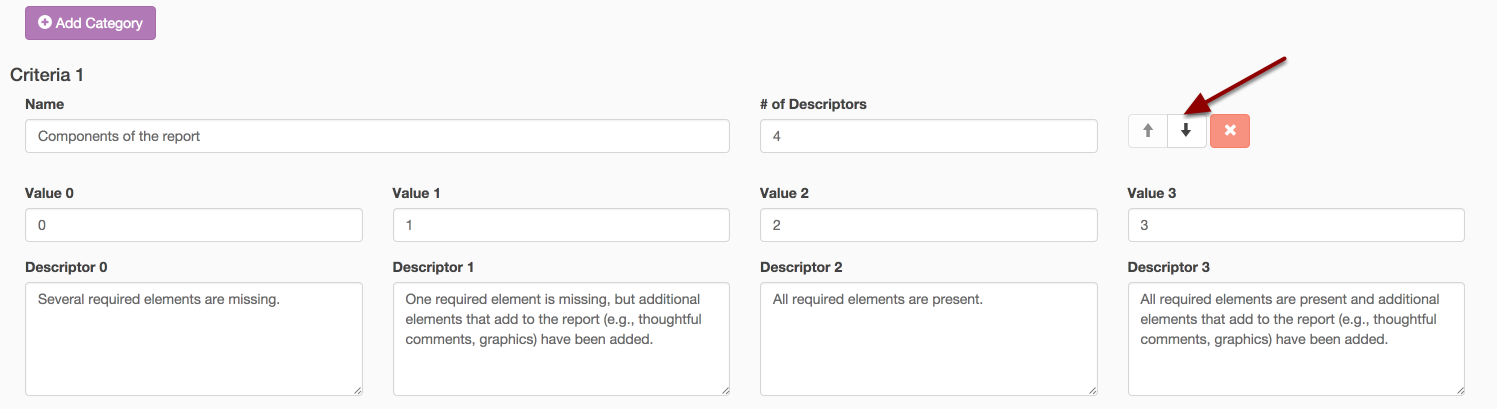
1. You can rearrange the order of your criteria by clicking the up and down arrow on the item. This will move the item up or down.
2. To delete a criterion, click the red 'x' button next to the item.
Step 5: Save your Rubric
To move on to the next step, you will need to 'save' your rubric. The system won't let you save the rubric until you have given the rubric a title, tagged it and entered values for all performance descriptors on your rubric.
We highly recommend saving the rubric as you go, rather than waiting until the end! We don't want the system to time out, for your internet connection to be lost or for you to accidentally click the wrong button on your keyboard and suddenly you have lost all your work. OUR BEST ADVICE IS SAVE OFTEN!

Once you have saved your rubric, you will be pushed out to the main design-draft page. You can either select 'edit' if you have realised you need to adjust something in your rubric, or just continue working on it. Or you can click 'publish'.

Set 6: Publish your Rubric
Click 'publish' when you are happy with your rubric and want to begin marking students against this rubric.
Note: You can make some changes to a published rubric (Alter the rubric name and how the rubric is tagged.) You can also alter some of the details for each criteria field (Name, code tag, level tag, skill assessed). Plus details for the performance descriptors (headers and performance descriptor text).
But you can not change the order of the criteria, remove/add criteria or performance descriptors nor can you alter the scoring against criteria. So make sure you are happy with all these parts before you publish the rubric.
We will discuss altering published rubrics, draft rubrics and archived rubrics in another manual.
Note: We also suggest publishing a rubric and then doing a trial mark to see if the analysis is what you want. If you realise there is an issue, you can delete the published version, alter the draft version and then re-publish the rubric. We recommend doing all of this before attempting to mark a whole class for real.


Last modified: Sunday, 22 January 2023, 7:22 PM