
Completion requirements
In this section, we will learn how to prepare your On Demand data for import into SPA.
Step 1
Please download the On Demand template from the templates section inside SPA.
Step 2
Once you have downloaded and opened the file, it will look like this.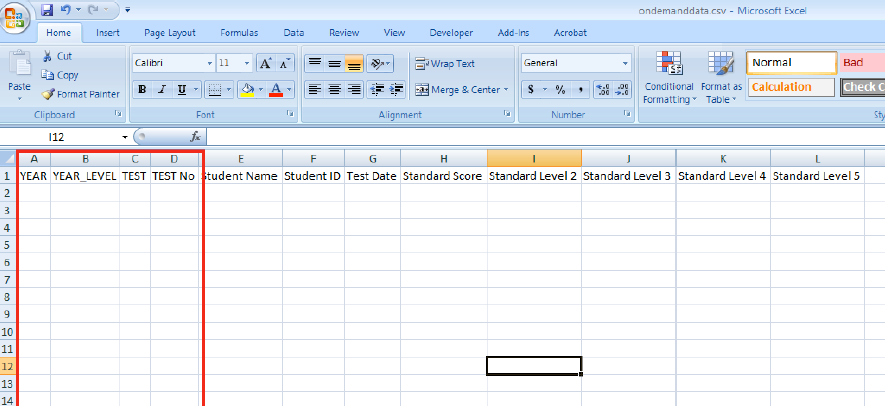
The first four columns in the spreadsheet—Year, Year_Level, Test and Test No—will need to be filled in manually. The other columns E to L are a direct copy and paste from the Word documents from your On Demand tests.
Column A "Year": The year the test was taken — for example, 2014.
Column B "Year_Level": The year level taking the test. For example, if the test was taken by a year 7 class, write a 7 in that column. DO NOT enter the words Year 7. Only enter the numerical value of the year.
IMPORTANT NOTE
It is important to note that even if a year 7 student is given a year 8 test, you would still write "7" in this column. No matter what test you give a student, you should always write the actual year level they were in when they sat the test.
Column C "Test": The adaptive test taken by the student.
The following is a list of the tests that you can upload into SPA and the corresponding name you need to call the test in the template:
Tests from (and including) 2017 onwards
Mathematics General (Standards 3 to 10)= Maths
Mathematics Number & Algebra (Standards 3 to 10)= Number
Mathematics Measurement & Geometry (Standards 3 to 10)= MGE
Mathematics Statistics and Probability (Standards 3 to 10)= Statistics
English General (Standards 3 to 10)= English
English Reading (Standards 3 to 10)= Reading
English Language Skills (Standards 3 to 10)= Language
English Word Building (Standards 3 to 10)= Word
Test up to and including 2016
Mathematics General (Standards 3 to 10)= Maths
Mathematics Number & Algebra (Standards 3 to 10) = Number
Mathematics Measurement & Geometry (Standards 3 to 10) = MGE
English General (Standards 3 to 10) = English
English Literacy (Standards 3 to 10) = Reading
English Language (Standards 3 to 10) = Spelling
English Writing (Standards 3 to 10) = Writing
Column D "Test No": This is NOT the actual number of the test that appears on the Word document.
SPA is set up to analyse the growth of a student over the year, between two testing periods.
In this column, you would put the number "1" if the test was administered in semester 1, or a number "2" if the test was administered in semester 2.
Alternatively, you can put a "1" if the test was administered in term 1, "2" if the test was administered in term 2, "3" if the test was administered in term 3 or "4" if the test was administered in term 4.
Once opened, you will see a table with all the results.
Make sure you have filled out columns A-D with the information about the test explained above. An example of what the file will look like once you have filled it out can be seen under Step 3.
It does not matter what order you put the tests into the document. SPA will look at the file and work out where the data needs to go. You can also put your whole school data into one document if you wish.
Step 3
Open up one of your On Demand Class Standard Score Reports: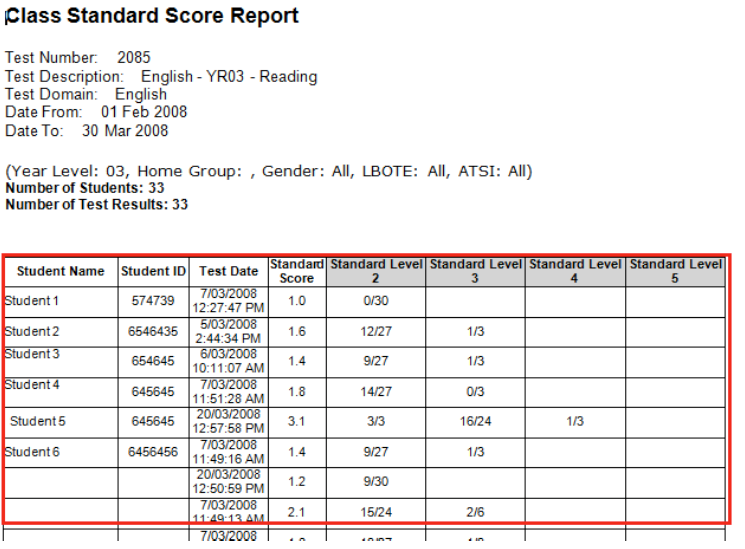
3a
Highlight all the data in the table, leaving out the first heading row (do not highlight Student Name, Student ID etc).
3b
Copy and paste the results into the SPAstandard On Demand template, starting at column E.
Step 4
Repeat step 2-3 for all of the tests you would like to upload into SPA.
Step 6
Save the file, keeping it in its original Excel format.
Step 7
Last modified: Thursday, 4 August 2022, 11:21 AM