
Completion requirements
In this section, we are going to learn how to create the data needed to import your Record of Oral Langauge Data into SPA.
Step 1
Download the ROL Data Tracker template.

Step 2
Open the Template:
Open the downloaded template, making sure to click "Enable Macros" when opening the file.

Once opened it should look like this:
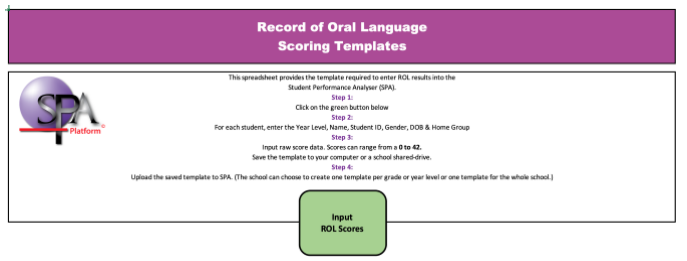
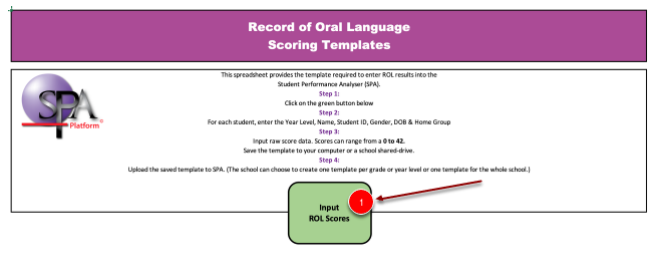
Step 3 Select Input ROL Scores
Step 4
Fill out the student details in the first few columns marked 'required'.
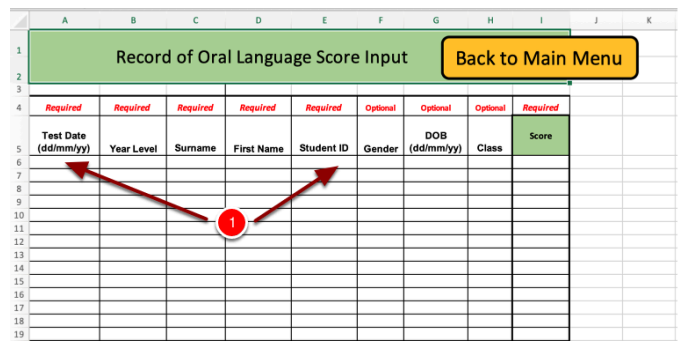
For each student, enter the:
- Test date (e.g. 08/02/18)
- Year Level
- Surname
- First Name
- Student ID (Student Number)
- Gender
- Date of Birth (optional)
- Home Group/class (optional)
Step 5
Enter each student's ROL raw score.
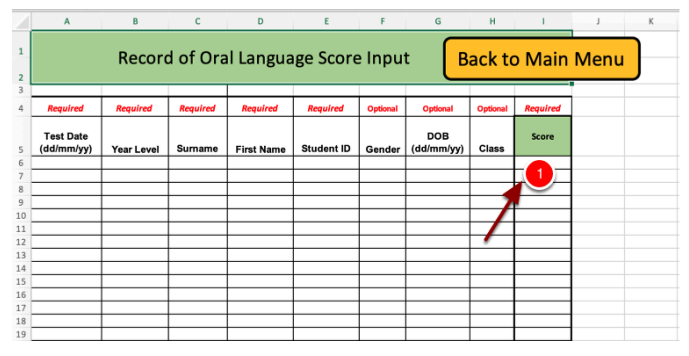
Step 6
Save the file and return to the main menu.
Once you have entered all the results into the template, you are now ready to save the file to your computer.
Last modified: Friday, 16 August 2024, 11:34 AM